
Theme
Getting Started
Welcome to Sidrune AI. This guide explains how to add funds, create an API key, configure a client, and resolve common setup problems.
Important: This page covers the basic onboarding flow. See the Help Center for detailed configuration and troubleshooting.
Contents
1. Quick start
Step 1: Add balance or subscribe
Sidrune AI supports two independent billing methods: usage-based balance and subscription plans.
Usage-based balance
- Best for: small or irregular workloads billed by actual consumption.
- How to purchase: open the top-up/subscription page, select an amount, and complete payment. The new balance appears in the upper-right corner.
- How it is charged: API usage is deducted from the account balance.
Subscription plans
- Best for: sustained token usage with plan allowance and group-multiplier discounts.
- How to subscribe: switch to subscriptions on the purchase page, select a plan, and complete payment. The plan appears under “My subscriptions.”
- Separate allowance: subscription allowance is not mixed with account balance.
- Limits: the plan's daily, weekly, or monthly total is the governing allowance. Shorter limits may also protect shared upstream capacity.
Important
- Balance and subscriptions are separate billing methods and require the corresponding API-key type.
Pricing overview
1. Request pricing
- The base price is based on the corresponding official API pricing.
- The final cost is determined by the discount associated with the selected group.
2. Subscription versus balance
- Subscriptions generally provide lower effective pricing but include shorter usage windows.
- A booster card can lift a short-window limit. When an active booster exists, it may be consumed before the main subscription allowance.
- Subscription groups generally have better multipliers than balance groups.
Check current commercial terms
Prices, conversion ratios, multipliers, and plan limits can change. Confirm the purchase page and console before paying or estimating cost.
Step 2: Create an API key
An API key authenticates requests to Sidrune AI. Create the key type matching the billing method. A key's group determines its available models, upstream sources, and pricing.
API-key types
| Key type | Name marker | Billing source | Intended use |
|---|---|---|---|
| Balance key | Name contains (balance) | Account balance | Usage-based billing |
| Subscription key | Name contains (subscription) | Subscription allowance | Subscription users |
Create a key
- Sign in and open “API Keys.”
- Select “Create key.”
- Enter a name that identifies its purpose.
- Create the key, then copy and store it immediately.
- Create separate keys for different projects, clients, or model groups when useful.
Step 3: Configure a client
After creating a key, enter it in Claude Code, Codex, CC-Switch, or another compatible client.
3.1 Choose an AI client
AI tools typically fall into two categories: web chat and agent clients. Web chat usually focuses on conversation and web search. Agent clients can also use skills, MCP servers, tools, and multi-agent orchestration, so beginners who need those capabilities should learn an agent client directly.
Agent clients commonly come in two forms:
- CLI: tools such as Claude Code CLI provide core functionality in a terminal and can integrate with editors such as VS Code or PyCharm. They are best for users already comfortable with command-line workflows.
- Desktop: official or third-party desktop apps combine CLI capabilities with a graphical interface. Common options include Claude Code, Codex, and Cherry Studio. For a simpler start, use Codex with GPT and Claude Code with Claude models.
Using GPT through Claude Code is not recommended for beginners because Claude Code may apply additional limitations to non-Claude models.
Downloads:
Suggested combinations by task:
- Programming: Claude Code or Codex. Choose Claude Code with Claude for stronger complex reasoning, or Codex with GPT for value and broad completion.
- Documents and copywriting: Codex with GPT.
- Industry research and deep analysis: Claude Code with Claude.
These are recommendations based on model characteristics, not requirements. Choose according to your own workflow. After installing a client, replace its official upstream configuration with Sidrune AI. For beginners, the suggested flow is: upstream-compatible API → Sidrune AI → CC-Switch → client.
3.2 Connection parameters
| Parameter | Description | Example |
|---|---|---|
| API Key | The key created in the console | sk-xxxxxxxxxxxxxxxx |
| Base URL | Request base address for the key's group | https://global.sidrune.ai/ |
| Model | Exact model call name supported by the group | gpt-5.6-sol, claude-opus-4-8 |
To identify a group's protocol, open “API Keys” in the console:
- Yellow: Anthropic format
- Green: OpenAI format
- Blue: Gemini format
| Group | Base URL | Complete request URL |
|---|---|---|
| Anthropic | https://global.sidrune.ai/ | https://global.sidrune.ai/v1/messages |
| OpenAI | https://global.sidrune.ai/v1 | https://global.sidrune.ai/v1/responses for Codex, or https://global.sidrune.ai/v1/chat/completions for Chat Completions |
Use a complete endpoint only when the client does not append its own path.
3.3 Configure CC-Switch
CC-Switch manages providers for agent clients including Claude Code, Codex, Hermes, OpenCode, and OpenClaw. Download it from the CC-Switch repository.
3.3.1 Claude Code CLI / Desktop
1. Add a custom provider

2. Enter the configuration
For an Anthropic group, follow this configuration:
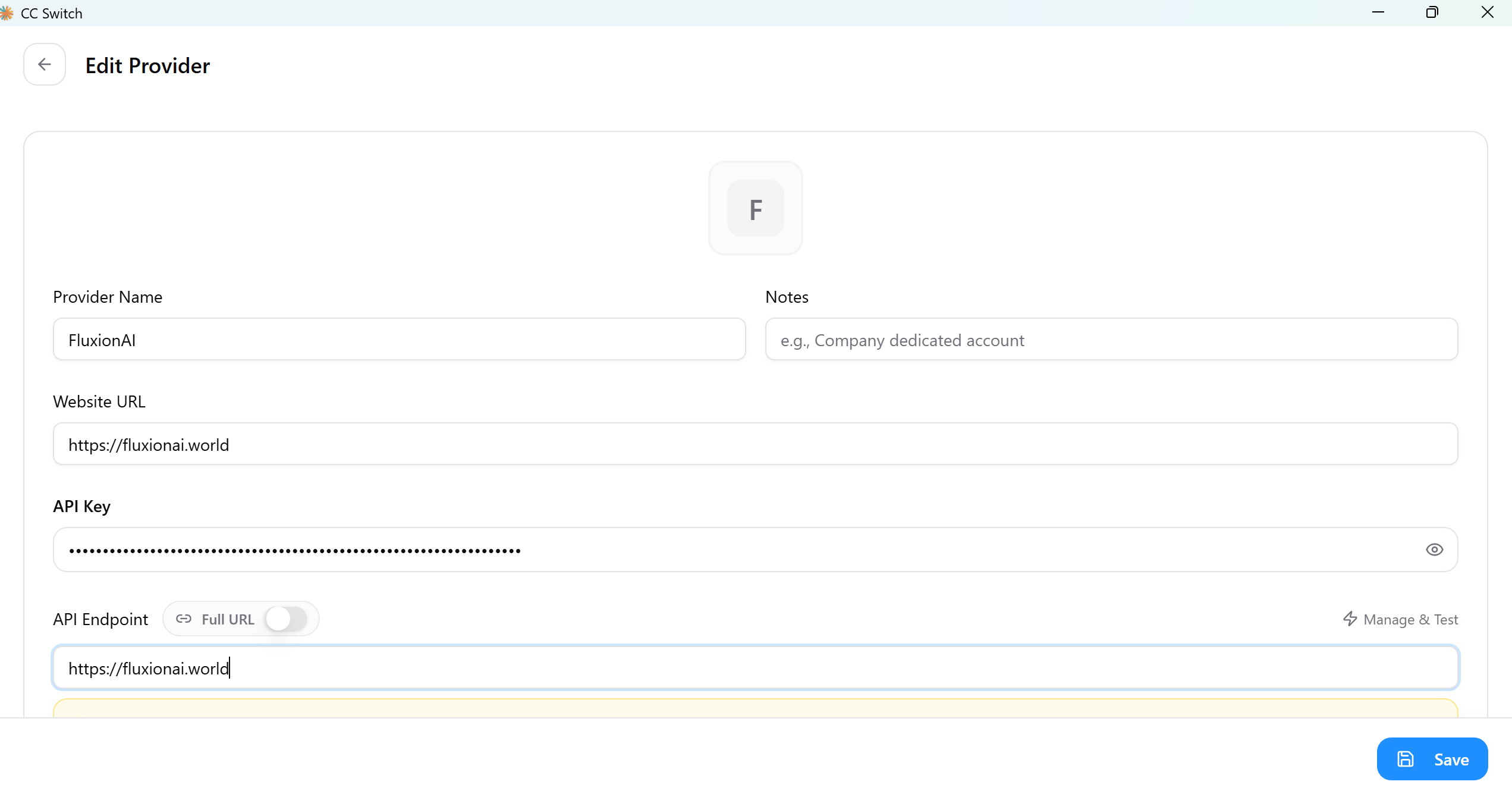
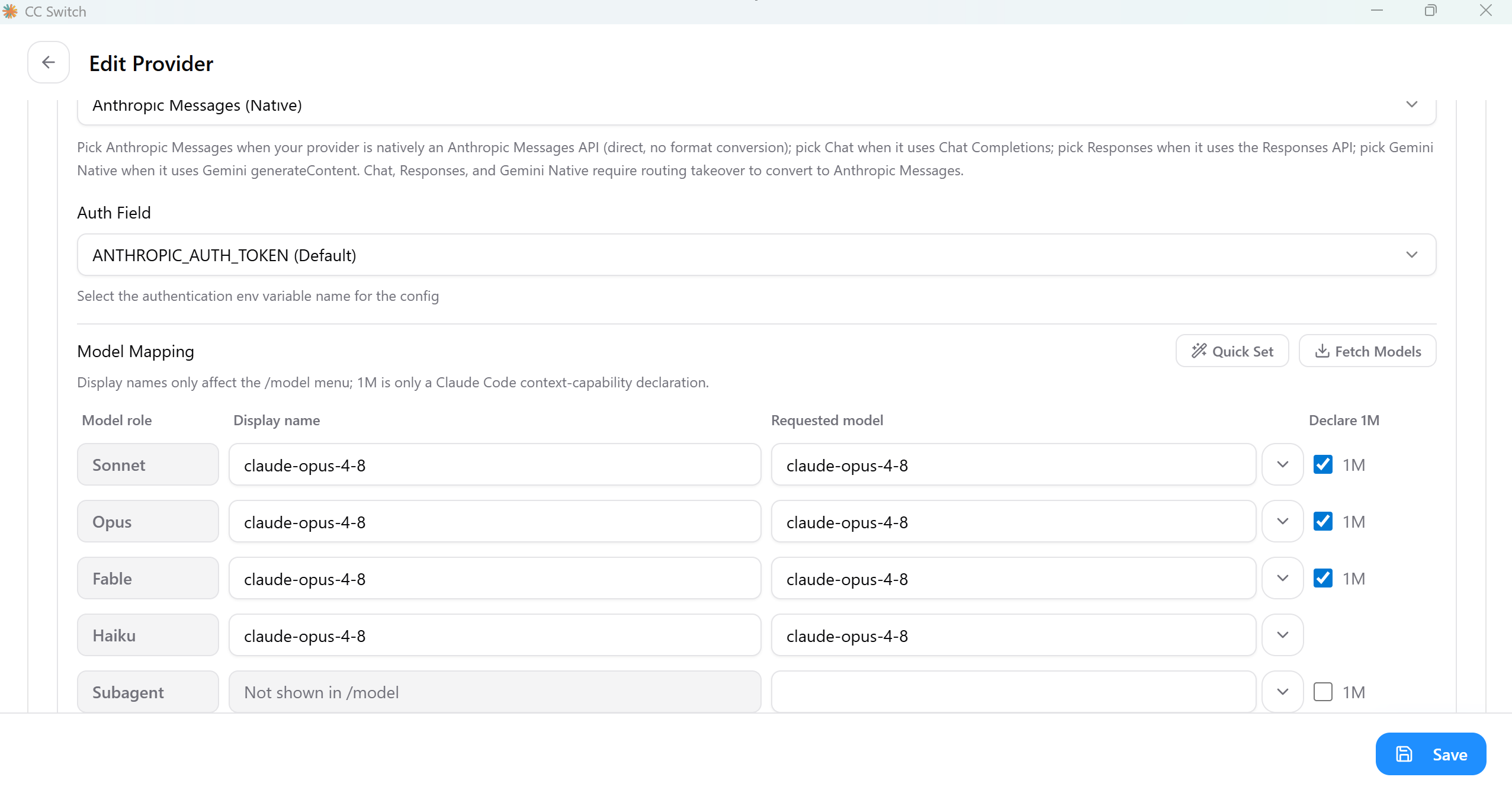
For an OpenAI group, follow this configuration:
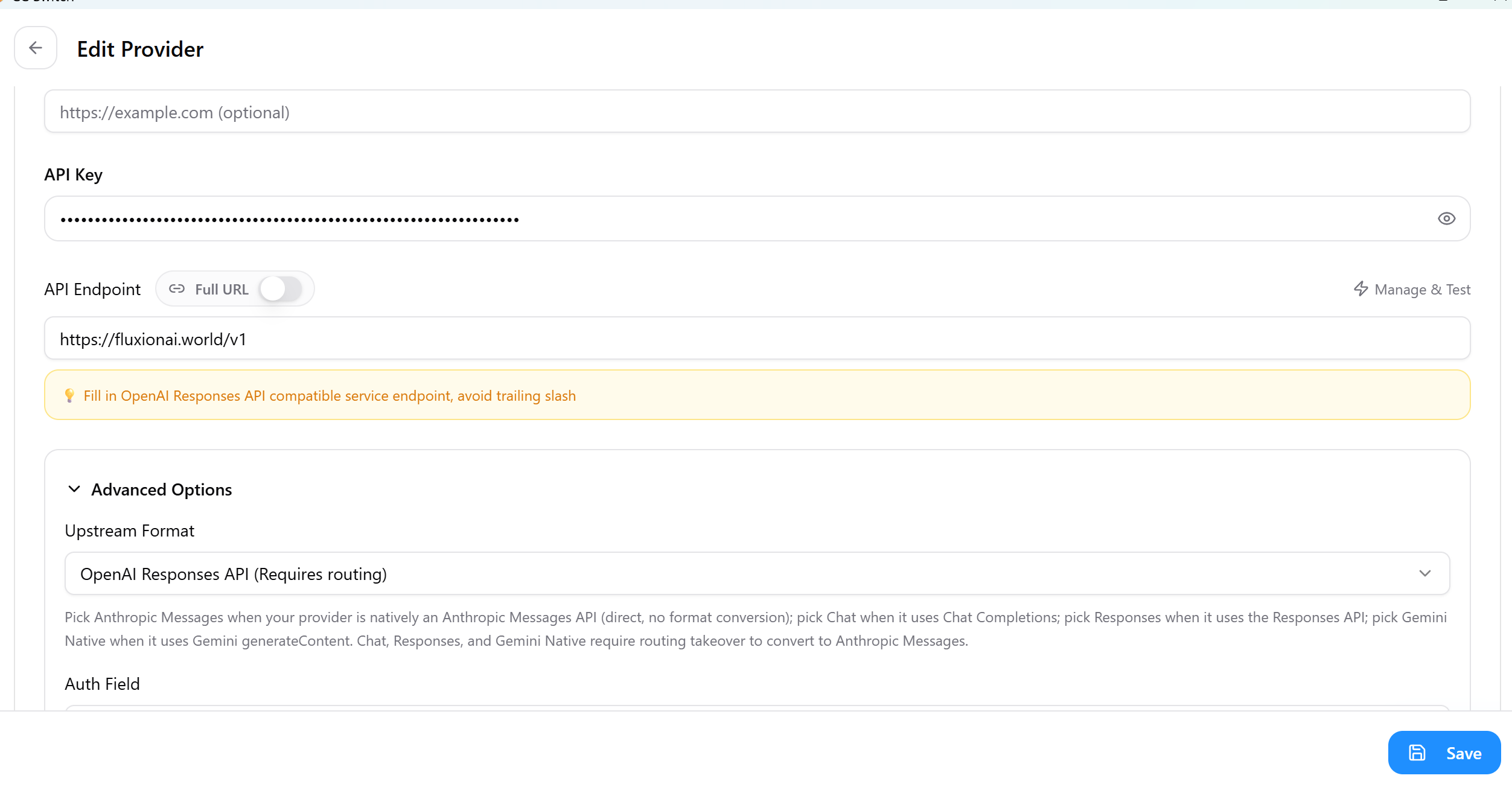
Note: An OpenAI group requires local routing. For stability, enable both Full URL and local routing. When Full URL is enabled, use the complete request address from section 3.2.

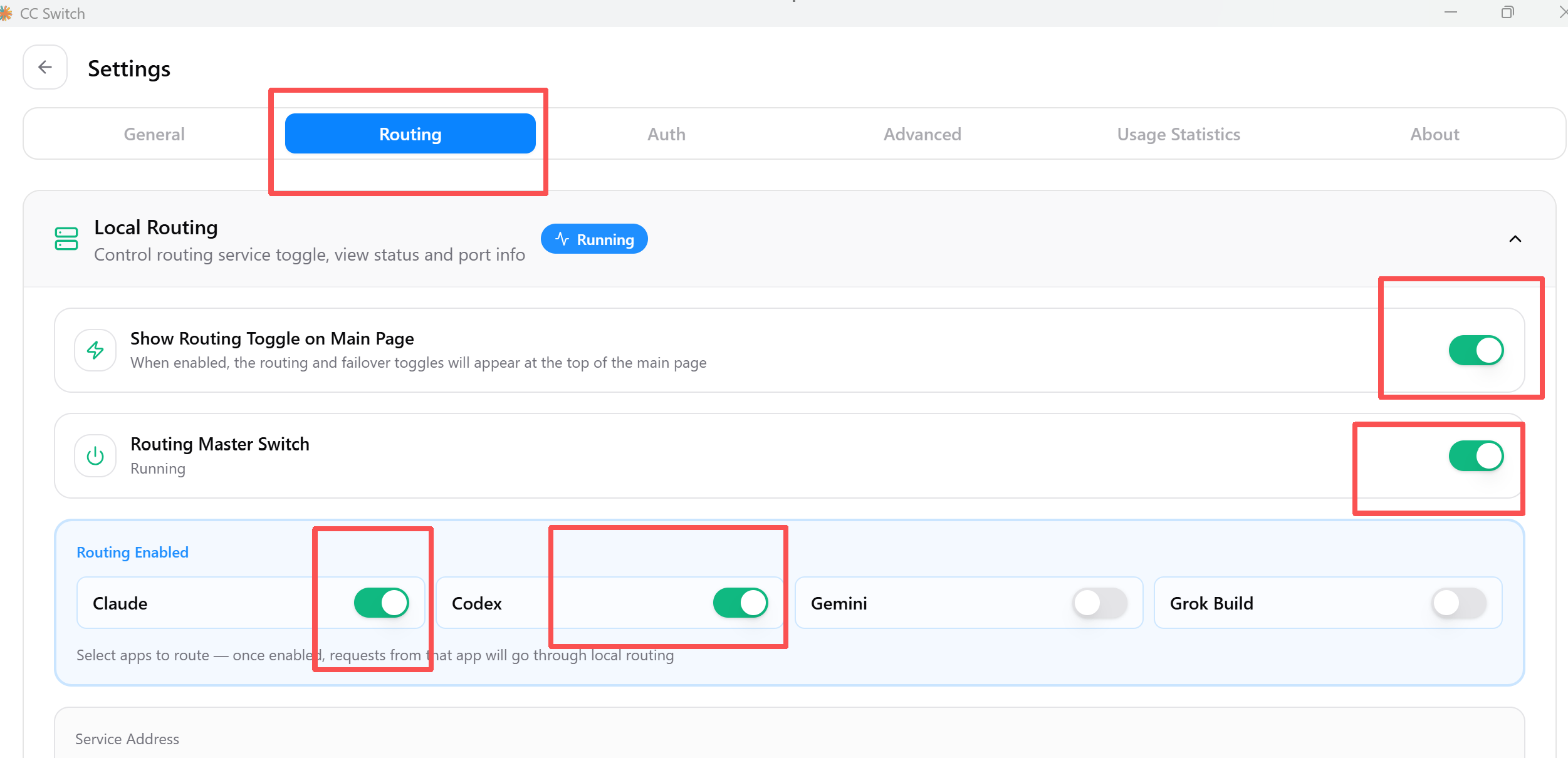
After it is enabled, the local router can be toggled from the home page:

3. Save the provider and select “Use.”
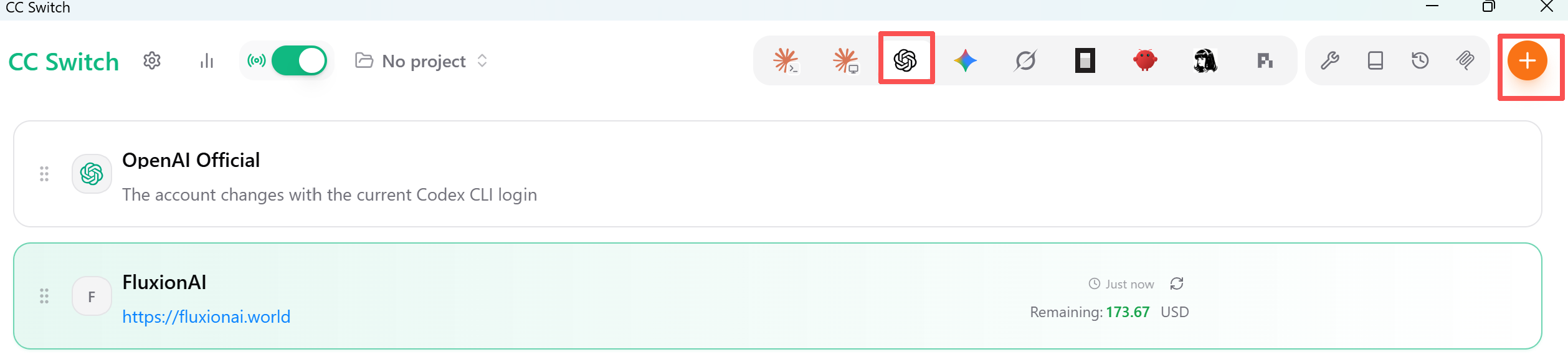
3.3.2 Codex
1. Add a custom provider
2. Configure the OpenAI group
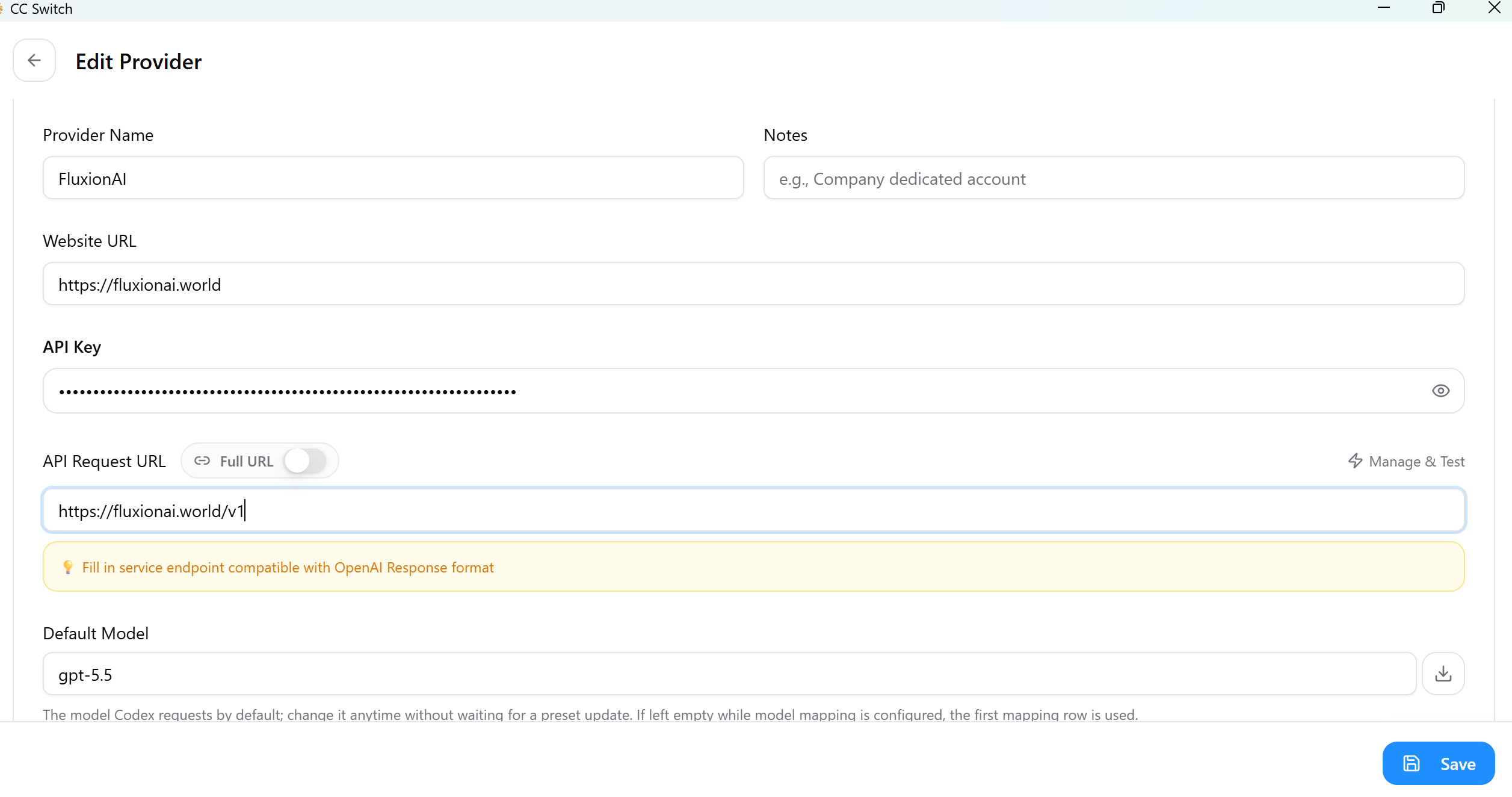

Note
- To use an Anthropic-group key from Codex, set the request address to
https://global.sidrune.ai/v1.- Configure additional models through model mapping.
3.4 Use xAI / Grok
Grok uses the OpenAI-compatible API:
- Base URL:
https://global.sidrune.ai/v1 - Endpoint:
/v1/chat/completions - Model: a supported Grok call name such as
grok-4.6
Use /v1/images/generations for image models such as grok-imagine.
2. Common questions
2.1 CC-Switch returns 502 Bad Gateway
Possible causes:
- A gateway problem between CC-Switch and the client.
- Platform maintenance; check the Help Center or official service status for notices.
- The current session exceeded its context limit.
Try these steps:
- Toggle local routing off and on.
- Restart the client.
- Start a new session.
2.2 CC-Switch returns model_not_found
Possible causes:
- The model name is incorrect.
- The API-key group does not support the model.
- A CC-Switch issue.
Try these steps:
- Copy the exact model name from Model Marketplace.
- Confirm that the group supports it; for example, do not request a Claude model from an OpenAI group.
- Toggle local routing off and on.
- Restart the client.
- Start a new session.
3. Get help
- See the Help Center for detailed instructions.
- Email service@sidrune.ai for support.
Thank you for using Sidrune AI.